
Is the warpshare in your search results an Android-to-Mac app, or WarpSend’s file-delivery workflow? The shared name can point to two different products, making it easy to mistake a download link for a device-to-device transfer tool.
That distinction matters when you need to send project files. WarpSend WarpShare creates a download link recipients can use without creating an account or logging in. It’s built for delivering files, not for continuously synchronizing folders between computers or network storage devices.
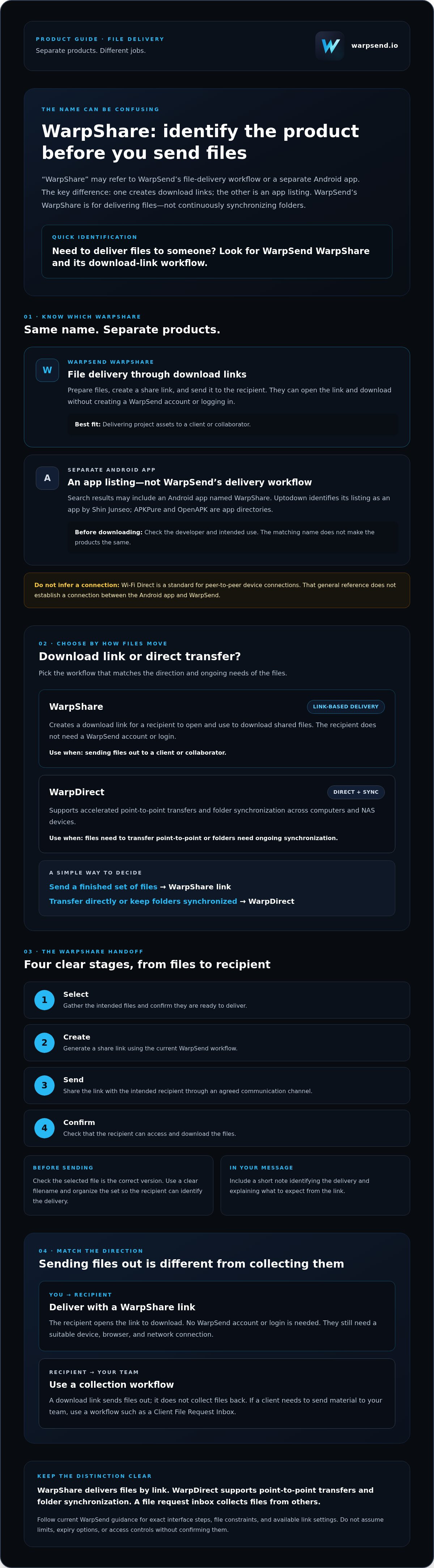
This guide explains how to identify the WarpSend product, how its link-based workflow works for recipients, and when it fits your delivery needs. It also compares WarpShare with the separate Android app and with WarpDirect, which supports point-to-point transfers and folder synchronization. Use the differences to choose a workflow before preparing files or asking someone to receive them.
Key Takeaways
- Distinguish WarpSend’s file-delivery product from the unrelated Android app that shares the WarpShare name.
- Use warpshare to create a download link recipients can open without an account or login.
- Choose WarpDirect for point-to-point transfers or ongoing folder synchronization across computers and NAS devices.
- Prepare a clearly named, organized set of files, then confirm the recipient can access it.
- Match the workflow to the direction of transfer: use a request inbox when clients need to send files to you.
WarpShare Explained: The WarpSend Product and the Android App Are Different
Search for “WarpShare” and you may find an Android app alongside references to WarpSend. The names match, but the products are separate. WarpSend WarpShare creates download links for file delivery. It isn’t the Android app, and WarpSend shouldn’t be mistaken for that app’s developer or distributor.
For recipients, the process is straightforward: open the shared link and download the files. They don’t need to create an account or log in. This can simplify delivery when you’re sending project assets to a client or collaborator who doesn’t use your team’s tools.
What does WarpSend WarpShare do?
WarpShare lets you share large files and project assets through download links. You prepare the files, create a link, then send it to the recipient. They use the link to download the shared material without a WarpSend account or login.
For example, a production team can send approved project assets to a client without asking them to set up an account. WarpShare is for delivering files through links. It isn’t a folder synchronization workflow, so it won’t keep the client’s copy aligned with a changing working folder.
Why does a different WarpShare appear in search results?
Some search results point to an Android app named WarpShare. Uptodown identifies its listing as an app by Shin Junseo. APKPure and OpenAPK are app directories, so their results concern Android app discovery rather than WarpSend’s file-delivery product.
Before downloading anything, check the developer and intended use. An Android app listing and a service for creating file download links serve different tasks. Wi-Fi Direct describes a standard for peer-to-peer connections between devices, but that general reference doesn’t establish a connection between the Android app and WarpSend.
- Need to distribute files? Look for WarpSend WarpShare and its download-link workflow.
- Looking for an Android app? Check the app listing’s developer and purpose before downloading.
How WarpShare Delivers Files Through Download Links
WarpShare is a link-based tool for delivering large files and project assets. Recipients download from a link instead of creating an account or logging in. That separates preparing and sending the files from the recipient’s download, so they don’t need to join your team’s system just to receive a delivery.
From project asset to shareable download link
The basic sequence is to choose the assets, create a share link, send it to the intended recipient, and let them download the files. Interface labels and controls can change, so follow current WarpSend guidance for exact steps. Check current file constraints and available link settings there as well. Don’t assume limits, expiry options, or access controls without confirming them.
For example, after a creative team approves a campaign graphic, the sender can select the final file, create a link, and share it with the client through an agreed communication channel. The client follows the link to download the asset. Before sending, check that the selected file is the correct version and that its filename makes it easy to identify.
- Select: Gather the intended files and confirm they’re ready to deliver.
- Create: Generate a share link using the current WarpSend workflow.
- Send: Share the link with the right recipient.
- Confirm: Check that the recipient can access and download the files.
This is a delivery workflow, not continuous folder synchronization. If you’re preparing a recipient-facing handoff, review the current WarpSend file-sharing workflow before sending.
What the recipient needs to download a file
Recipients don’t need to create a WarpSend account or log in to download shared files. That removes an account setup step from the handoff. Send the link with a short note identifying the delivery and explaining what to expect. Recipients still need a suitable device, browser, and network connection, so don’t assume every setup will work the same way.
A download link sends files out; it doesn’t collect files back from the recipient. If a client needs to upload material to your team, use a collection workflow such as a Client File Request Inbox instead. For broader context on how file-sharing tools compare, see PCMag’s overview of cloud storage and file-sharing services.
WarpShare vs. WarpDirect: Choose Links or Direct Transfers
Choose based on how the files need to move. WarpShare creates a download link for recipients. WarpDirect supports accelerated point-to-point transfers and folder synchronization across computers and NAS devices. These workflows address different needs: delivering selected files, transferring between endpoints, or keeping folders synchronized.
| Workflow need | WarpShare | WarpDirect |
|---|---|---|
| How files move | Share through a download link | Accelerated point-to-point transfer |
| Recipient or endpoint | Recipients download without creating an account or logging in | Connects the endpoints involved in the transfer |
| Ongoing folder sync | Not its role | Supports synchronization across computers and NAS devices |
When a download link fits the job
Use WarpShare when you need to distribute selected files without coordinating a direct transfer between devices. For example, a team can share a finished set of project assets with a client through a link. The client can download without creating an account or logging in, reducing setup for a one-time handoff. This is file delivery, not a way to keep the client’s folder synchronized with the team’s working files.
A link-based approach works when the recipient needs access to a specific delivery and the sender can choose which assets to share. Before sending the link, confirm that the files are ready and intended for that recipient.
When direct transfer or folder sync fits better
Choose WarpDirect when the task calls for a point-to-point transfer between devices. If a project depends on folders staying synchronized across workstations and NAS devices, WarpDirect supports that workflow too. It handles movement and synchronization between endpoints, rather than creating a recipient-facing download link.
Keep incoming files separate from outgoing delivery. WarpSend’s Client File Request Inboxes are designed for collecting client uploads. In short, send files through WarpShare, transfer or synchronize through WarpDirect, and request incoming assets through an inbox. The name warpshare refers to the link-based option, not every file movement workflow.
Build a Reliable WarpShare Delivery Workflow
A dependable handoff starts before you create a link. Check the assets, recipient, and delivery expectations first. Then share a clearly identified set of files and confirm that the recipient can access it. These checks help prevent version mix-ups and avoidable follow-up messages.
Prepare files before sharing
Group deliverables in a structure that makes sense for the project. Keep related files together, remove drafts the recipient shouldn’t receive, and use filenames that identify the asset or version. Names such as “Campaign-Logo-Final” are easier to recognize than unexplained number strings or internal shorthand.
Before creating a WarpShare link, confirm who should receive it and what they expect. Check current WarpSend guidance for setup instructions, file constraints, and available link settings. Don’t assume file limits, expiry options, or access controls. Verify those details before building them into a team process.
- Review: Confirm the selected assets are final and ready to share.
- Organize: Group related deliverables and remove unintended files.
- Name: Use descriptive filenames that help recipients identify each item.
- Verify: Check the intended recipient and current product guidance.
Send the link and confirm the handoff
Once the share link is ready, send it through the communication channel your team normally uses. Add a short message that identifies the delivery and explains what the recipient should do next. For example: “The approved graphics are ready at this link. Please download them and let me know if you can’t access the files.”
Recipients can download shared files without creating an account or logging in, but that alone doesn’t confirm the handoff is complete. Ask for a simple confirmation if you need to know they received the files. Before promising delivery tracking, automatic notifications, or access controls, verify that WarpShare currently supports the specific feature.
Ready to organize your next file handoff? Explore WarpSend’s file-sharing workflow and check the current guidance before sending.
Is WarpShare Right for Your Team? Evaluate the Fit and Next Step
Choose WarpShare when your team needs to distribute files through download links. It fits handoffs where a client or collaborator needs selected project assets without creating an account or logging in. The key question is whether your task is a one-time delivery or a different kind of file movement.
A quick fit checklist for WarpShare
Use these checks to match the workflow to the task:
- Are you sending files out? WarpShare shares files through download links. If you need to collect client uploads instead, consider WarpSend’s Client File Request Inboxes.
- Does the recipient need a low-friction download? Recipients can download shared files without account creation or login, which can simplify a handoff with someone outside your team.
- Do you need a link or ongoing synchronization? Choose WarpShare for link-based delivery. For point-to-point transfers or folder synchronization across computers and NAS devices, assess WarpDirect.
These distinctions help prevent a common workflow mismatch. A download link gives someone access to a delivery. It doesn’t keep project folders synchronized, and it isn’t an upload request for incoming material. Before adopting a process, check current WarpSend guidance for setup details and any file or link settings your team depends on.
Explore WarpSend’s file-delivery workflow
If the checklist points to link-based delivery, review WarpShare’s product details and confirm that its current workflow fits your team’s file types, recipients, and handoff process. Don’t base a decision on assumed performance, security features, file limits, or subscription terms. Verify the requirements that matter to your team in current product information.
For teams that regularly send project assets to clients or collaborators, warpshare offers a way to share files while keeping recipient access simple. If your main need is continuous synchronization, direct transfer, or collecting uploads, evaluate the corresponding workflow instead.
Explore WarpSend to review WarpShare and choose the file-delivery workflow that fits your team.
Choose the File Workflow That Fits Your Next Handoff
The name overlap can lead you to an unrelated Android app, so check that you’re looking at WarpSend’s file-delivery product. Use warpshare when you need to distribute files through a download link. Recipients can download shared files without creating an account or logging in.
Match the workflow to the direction and pattern of your file movement. WarpSend provides separate tools for link-based delivery, direct transfers, folder synchronization, and client uploads. Choosing the right tool helps avoid using a one-time download link when you need folders to stay in sync, or a delivery workflow when you’re collecting assets from clients.
Review the current product details before deciding. Check that the setup, file constraints, and available options meet your team’s needs, then choose the workflow that fits the handoff. Explore WarpSend to see the available file-sharing tools and plan your next delivery.
Frequently Asked Questions
Is WarpShare the same as the Android app in search results?
No. WarpSend WarpShare is a file-delivery product for creating download links, while the Android app listed by Uptodown is attributed to Shin Junseo. They share a name but serve different purposes. This guide covers WarpSend’s file-sharing workflow, not installation or support for the Android app. Before downloading an app, check its developer and product description to confirm it’s the one you intended to find.
Can recipients download WarpShare files without an account?
Yes. Recipients can download files shared through WarpSend without creating an account or logging in. That can simplify delivery to a client or collaborator who doesn’t use your team’s tools. The sender still needs to create and share a link using the current WarpShare workflow. Check current WarpSend product information for access settings or other requirements that may affect how you prepare and send a delivery.
How does WarpShare work?
WarpShare lets a sender create a download link for files or project assets and share it with recipients. The basic sequence is to select the intended files, generate a link using the current workflow, send it, and let recipients download. Recipients don’t need to create an account or log in. For exact interface steps, file limits, link settings, or delivery-status features, check current WarpSend guidance rather than relying on assumptions.
What is the difference between WarpShare and WarpDirect?
WarpShare is designed for sharing files through download links. WarpDirect supports accelerated point-to-point transfers and folder synchronization across computers and NAS devices. Use the link workflow to deliver selected files to a recipient. Consider WarpDirect when the task calls for direct transfer or ongoing folder synchronization. These are distinct workflows, not interchangeable names for the same feature. Check current product details for plan-specific capabilities.
Does WarpShare have a file-size limit?
The available product information doesn’t specify a maximum file size, so don’t assume that “large files” means unlimited file sizes. Check WarpSend’s current product documentation or subscription details before planning a delivery, especially if you’re sending a very large project asset. If a size limit could affect your workflow, confirm it before preparing or uploading files. Avoid relying on figures that aren’t confirmed by current product information.
Is WarpShare suitable for creative teams?
WarpShare may suit creative teams that need to distribute large files or project assets through download links. Recipients can download shared files without creating an account or logging in, which can help when sending work to external clients or collaborators. If your main task is point-to-point transfer or keeping project folders synchronized across computers and NAS devices, evaluate WarpDirect. Confirm current capabilities against your team’s delivery needs before choosing.

