

The transfer isn’t finished when the upload bar reaches 100%. If a client can’t open the link, find the right folder, or download the file, the handoff still needs work. To send large files to clients reliably, choose a transfer method that fits the job and give the recipient a clear next step.
Email attachments are convenient, but large deliverables can exceed provider limits or take too long to send. Clients may also get stuck on account prompts or unclear permissions. A straightforward download link can remove extra steps. For example, WarpShare lets recipients download shared files without creating an account or logging in.
This guide explains how to choose a method for one-time delivery, ongoing collaboration, or direct transfers between devices. You’ll also learn how to prepare files, check access, and write simple handoff instructions. The goal is a dependable workflow: send the right files, make the download easy to find, and tell your client what to do if something goes wrong.
Key Takeaways
- Choose how to send large files to clients based on the deliverable, recipient access, and whether the work requires ongoing collaboration.
- Compare attachments, shared storage, download links, and direct transfers to find a workflow that fits the handoff.
- Prepare files with clear names and a simple folder structure so clients can locate the right deliverables.
- Use concise instructions that explain where to download the files and what to do next.
- Consider WarpShare for a download link clients can use without creating an account or logging in.
Why sending large files to clients needs a clear delivery workflow
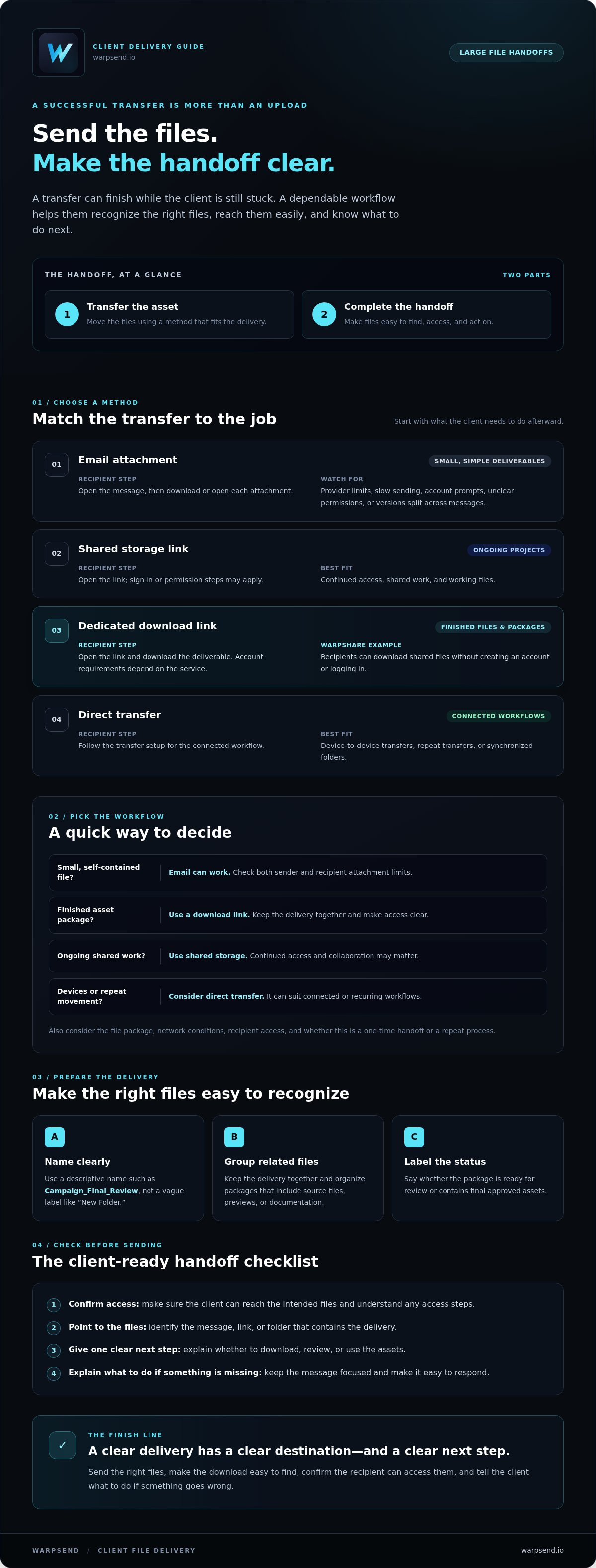
Large-file delivery has two parts: transferring the asset and making the handoff clear enough for the client to complete. The transfer can succeed, but the delivery may still stall if the recipient doesn’t know which message contains the files, whether an account is required, or what to do next. A basic overview of file transfer explains how data moves between systems. A client-ready workflow also considers what happens at the receiving end.
A practical workflow confirms what’s being sent, groups related files, and tells the client where to find them and how to proceed. A finished export may be easy to identify, while a package of source files, previews, and documentation needs more structure. Clear instructions can prevent avoidable questions about missing assets, outdated versions, or access.
What makes a client file delivery easy to complete?
Think through the client’s path from message to download. They should be able to recognize who sent the delivery, identify the correct file or folder, and see one direct next step. Use a descriptive name such as Campaign_Final_Review instead of a vague label like New Folder. State whether the package is ready for review or contains final approved assets.
The recipient’s experience matters as much as the upload. A process that works for the sender can still create friction if it requires confusing permissions or unfamiliar steps. Before sending, check that the client can reach the intended files and understands what action to take.
When is email no longer a practical option?
Email attachment limits vary by provider, so check the sender’s and recipient’s setup rather than assuming a file will fit. Even when attachments send successfully, splitting a delivery across several messages can separate related assets. Similar filenames or follow-up corrections can also leave clients unsure which version to use.
For larger files or multi-file packages, use a transfer workflow that keeps the delivery together. Send one clear message with a link or transfer details, name the folder so the client can recognize it, and explain what’s inside. Keep the handoff focused: identify the deliverable, give the next step, and explain how the client should respond if something is missing. This makes it easier to send large files to clients without a chain of clarification emails.
Compare large-file delivery methods before choosing one
The right method depends on what the client needs to do after the transfer. Email can work for a small, self-contained file. Shared storage supports continued access and collaboration. A dedicated download link is suited to delivering finished assets to someone who mainly needs to retrieve them. Direct transfer can suit connected devices or repeat workflows. PCMag’s comparison of best cloud storage services offers a broader look at storage and file-sharing options. Access steps and controls vary, so check the details of the service you choose.
| Method | Transfer direction | Recipient steps | Collaboration needs | Workflow fit |
|---|---|---|---|---|
| Email attachment | Sender to client | Open the message and download or open each attachment | Limited; separate replies can complicate versions | Small, simple deliverables |
| Shared storage link | Sender shares access with client | Open the link; sign-in or permission steps may apply | Useful when people need continued access or shared work | Ongoing projects and working files |
| Dedicated download link | Sender delivers files outward | Open the link and download the deliverable; account requirements depend on the service | Usually focused on delivery rather than shared editing | Finished exports or grouped project assets |
| Direct transfer | Device to device | Follow the transfer setup for the connected workflow | Can suit repeat transfers or synchronized folders | Connected devices and recurring asset movement |
When should you send a download link instead of a direct transfer?
Use a download link when you’re delivering a finished export or asset package to an external client. WarpShare generates links for large files and project assets, and recipients can download without creating an account or logging in. Direct transfer may be a better fit when files need to move between devices or a connected workflow and ongoing folder synchronization matter. Consider the file package, network conditions, recipient access, and whether this is a one-time handoff or a repeat process.
When does a client upload inbox solve a different problem?
An upload inbox reverses the direction of delivery. It lets a client send materials to your team, such as raw footage, source images, or other project assets. It doesn’t replace an outbound download link for finished work. Keep the workflows distinct: use a delivery method to send files to the client and a collection method to receive files from them.
To send large files to clients, match the method to the direction of transfer and the work that follows. If a client-ready download link fits the handoff, explore WarpShare download links.
Match the transfer method to file size, client access, and project needs
Start with the deliverable, then consider how the client will receive it. A single approved export has different needs from a folder of images, project files, and documentation. Files that change during production need a workflow that supports continued movement or access. The largest option isn’t automatically the right one. Choose a method that keeps the files together and makes the client’s next step clear.
Check the practical constraints before sending: file size, network conditions at both ends, whether the client needs an account, and which devices they can use. A suitable method can still create friction if the recipient can’t access it or needs to install unfamiliar tools. If the client’s access requirements are unclear, confirm them before choosing a workflow.
Which method fits a one-time client deliverable?
For completed files the client only needs to retrieve, a direct download link is often a straightforward fit. WarpShare generates links for large files and project assets, and recipients can download without creating an account or logging in. That can simplify a first-time handoff. Before describing any service’s link settings or expiration options, verify the current controls and confirm they suit the delivery.
Keep the delivery message specific. Identify the files, say whether they’re ready for review or final use, and tell the client where to start. If the client’s device or connection could affect the download, include the file format and package contents so they know what to expect.
Which method fits recurring creative work?
Repeated transfers or active projects may call for a connected workflow instead of a series of one-off deliveries. WarpDirect supports direct transfers and folder synchronization across computers and NAS devices. Use it when the work involves moving files between supported devices or keeping project folders in sync. Check compatibility and setup needs for the devices involved before adopting it.
Synchronization supports ongoing work, but it doesn’t replace a clear final handoff. Tell the client when a deliverable is complete, which files are approved, and where to access them. This helps prevent a working folder from being mistaken for the final version.
Use this simple rule: choose a download link for a one-time handoff, shared storage when people need continued access or collaboration, and direct transfer or synchronization for repeat device-to-device workflows. If you need to send large files to clients, let the recipient’s access needs and the project’s next step guide the choice, rather than assuming one method will always be fastest.
Prepare and send large client files with fewer handoff problems
A reliable handoff starts before the transfer. Confirm exactly what the client should receive, arrange files so each item is easy to identify, and choose a delivery method that fits the project. Then send one clear message and follow up through an agreed channel if the client reports an access issue.
Use this sequence to send large files to clients with fewer avoidable questions:
- Confirm the deliverables. Check the final files, versions, and formats against the project agreement or review notes.
- Organize the package. Group related items, remove obvious duplicates and temporary working files, and use names that make the project and status clear.
- Choose the transfer method. Match the method to the file package, client access needs, and whether the work is a one-time delivery or part of an ongoing workflow.
- Send the handoff. Identify what the link or transfer contains, explain the next step, and mention access requirements only if you’ve confirmed they apply.
- Follow up. Check that the client can access the intended files. Use the communication channel you’ve agreed on to resolve any issue.
How should you organize files before sending them?
Keep related deliverables in one clearly named folder when that suits the project. Use concise filenames such as ProjectName_Export_Final or ProjectName_Logo_Review so the purpose or status is easy to recognize. Avoid ambiguous names like final-final2. Before generating a link, open the folder and confirm it contains client-ready files, not drafts or temporary working assets.
What should a client delivery message include?
Keep the note brief and specific. Name the delivery, tell the client what to do, and explain how to reach you if access fails. For example: “The link contains the approved project export and supporting assets. Open it to download the files. If you can’t access the delivery, reply to this email and I’ll check it.” Adjust the instruction to match the transfer method you used.
A download link can make the handoff easier to follow. WarpShare recipients can download shared files without creating an account or logging in. Review WarpSend file delivery options to see whether they fit your client handoff workflow.
Use WarpSend for Simpler Large File Handoffs
Once the deliverables are checked and organized, choose a transfer method that gives the client a clear route to the files. WarpShare generates download links for large files and project assets. Recipients can download through the link without creating an account or logging in, removing an account-creation step from the handoff.
This can help when you’re delivering approved exports, design packages, or other assets to a client who simply needs to download them. It doesn’t replace preparation: confirm the folder contents, use recognizable filenames, and tell the client what the link contains and what to do next.
How does WarpShare fit a client delivery workflow?
After confirming the files, use WarpShare to generate a download link and include it in a concise delivery message. Name the deliverables and state the next step, such as downloading the package or reviewing the export. The client doesn’t need to create an account or log in to download. Before relying on particular link settings, access controls, or expiration options, verify the current feature details.
When should a team consider WarpDirect instead?
WarpDirect serves a different workflow. It supports direct transfers and folder synchronization across computers and NAS devices, which can fit recurring project movement between supported systems. Consider it for active work that involves repeated file transfers or synchronized folders. It doesn’t replace identifying which files are final and communicating that delivery to the client.
Use WarpShare when the goal is to give a client a download link. Consider WarpDirect when the work calls for direct transfer or ongoing folder synchronization across computers and NAS devices. The right choice depends on whether you’re delivering finished files or moving project assets through a recurring workflow.
Explore WarpSend file transfer options and choose the workflow that fits your client delivery needs.
Make the Next Client Handoff Easier
A reliable delivery is more than a completed upload. Choose a method that fits the files and project, organize the deliverables so the client can identify them, and include a clear next step. This routine helps you send large files to clients without turning the handoff into a chain of access questions.
For finished work, WarpShare generates download links that clients can use without creating an account or logging in. For recurring project movement, WarpDirect supports direct transfers and folder synchronization across computers and NAS devices. Keep the purpose clear: one helps deliver files to a client, while the other can support ongoing workflows between devices.
Before sending, confirm the files and instructions. Then choose the transfer workflow that matches what happens next. Explore WarpSend file delivery options to find a fit for your client handoffs. With clear files, a suitable method, and a straightforward message, you can make the next delivery easier for everyone.
Frequently Asked Questions
How can I send large files to a client without email attachments?
Use a file transfer service that creates a download link, then send the link with a short note identifying the files and the next step. This keeps a large deliverable out of the email attachment and makes it easier to group related assets. Before sending, check that the link opens as intended and that the client understands how to download the files.
Can clients download large files without creating an account?
Yes, if the transfer method supports downloads without recipient registration. WarpShare generates download links for large files and project assets, and recipients can download without creating an account or logging in. State that in your handoff message so clients know what to expect. Check the service’s current access settings before promising other details, such as link expiration or additional permissions.
What is the difference between a download link and a direct file transfer?
A download link lets you share access to files so a recipient can retrieve them. It suits a one-time delivery, such as a finished export. A direct transfer moves files between devices and can suit connected or recurring workflows. WarpDirect supports direct transfers and folder synchronization across computers and NAS devices. Choose based on whether the client needs a completed package or the team needs ongoing file movement.
How do I make a large file delivery easier for a client to access?
Give the delivery a recognizable name and tell the client exactly what it contains. Use one clear link or set of instructions, identify the action they should take, and explain how to contact you if access fails. Consider the client’s device and technical comfort. If the method requires a login or special setup, explain that before sending and confirm the client can complete those steps.
What should I do if a large file transfer is interrupted or slow?
Check the connection at both ends and confirm that the sender and recipient can still access the transfer. Don’t assume every service supports resuming an interrupted upload or download. Review the transfer tool’s current instructions for retry or resume options. If the issue continues, contact the recipient through your agreed channel, explain the next step, and consider a different method that fits the file and workflow.
Is a file request inbox the same as a client download link?
No. A download link sends files from your team to the client. A file request inbox collects files from the client, such as raw footage or source assets. These workflows move files in opposite directions. Use a download link to deliver finished work and an inbox when you need the client to upload materials. Confirm which direction the transfer needs to go before sharing instructions.
How should I organize files before sending them to a client?
Group related deliverables in a clearly named folder, remove obvious duplicates and temporary working files, and use concise filenames that identify the project or version. For example, label an approved export with the project name and “Final” rather than “new file.” Before creating the link, open the folder and check that it contains the intended client-ready files. Then explain what the client will find inside.

