

The easiest way to share a file isn’t always the one that skips signup for the sender. If your recipient has to create an account before downloading, they may give up before the handoff is complete. To share files without recipient signup, check the download experience, not just the upload process.
This matters when an email attachment won’t work or a broadly accessible link raises privacy concerns. Choose a method that suits the file’s size and sensitivity, gives the recipient a clear route to the download, and lets you verify that you’ve shared the right file.
This guide explains how to choose an approach, what to check before sending a link, and how to confirm the recipient can retrieve the file. WarpSend is one option for large-file downloads: it creates a link recipients can use without creating an account or logging in. The aim is a simpler handoff, with fewer barriers for the recipient and a clearer process for you.
Key Takeaways
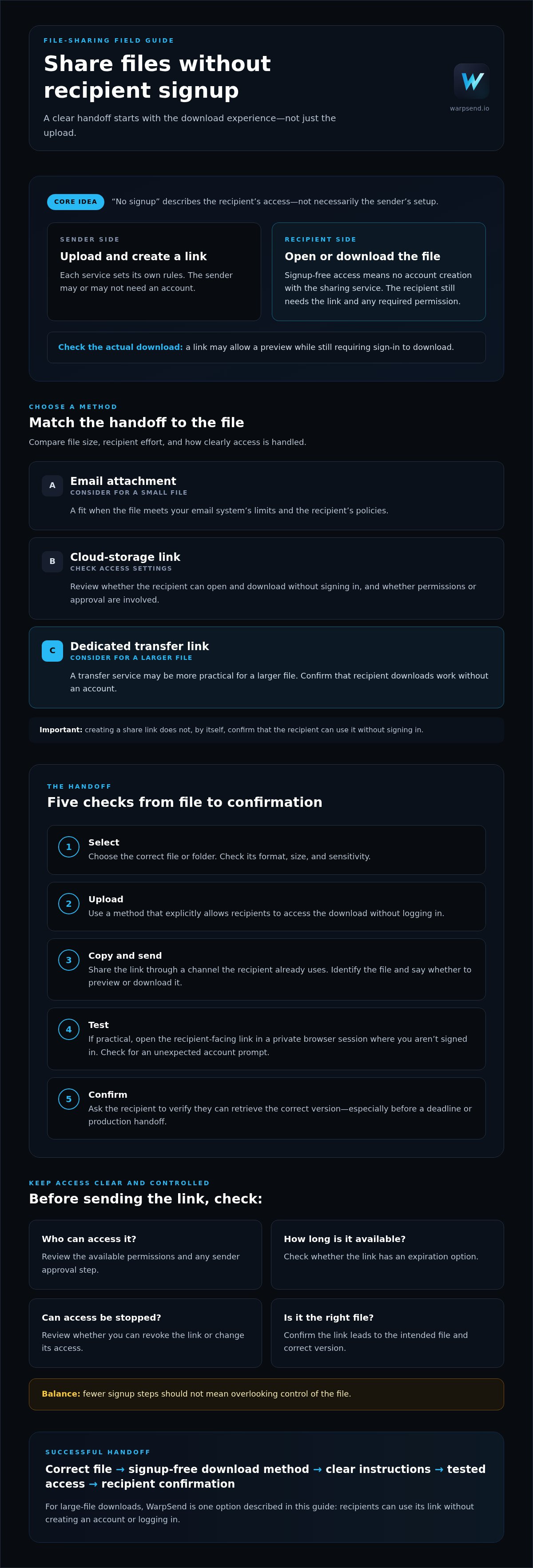
- Recipient signup-free sharing means people can open or download a file without creating an account with the sharing service, though they still need the link and any required access permission.
- To share files without recipient signup, choose a method that explicitly allows downloads without login, then test the recipient-facing link before sending it.
- Compare attachments, cloud-storage links, and dedicated transfer links by file size, recipient effort, and how clearly each method handles access.
- Check the available permissions, link expiration, and revocation options. Fewer signup steps shouldn’t mean overlooking control of the file.
- Match the workflow to the file and handoff, then confirm the recipient can retrieve the correct version.
What Does Sharing Files Without Recipient Signup Actually Mean?
Sharing files without recipient signup means giving someone access to open or download a file without requiring them to create an account with the sharing service. The recipient may still need a working link, a compatible browser, or permission set by the sender. “No signup” describes the recipient’s access, not necessarily the sender’s setup.
File sharing can take different forms, from attachments to online links. The File sharing overview provides background on common methods. For a practical handoff, focus on what happens at each end: who uploads the file, who can open it, and whether the recipient needs to sign in.
Does the sender need an account if the recipient does not?
Not necessarily. Sender registration and recipient login are separate requirements, and each service sets its own rules. A tool may let a sender upload without an account, require the sender to sign in, or allow account-free recipient downloads while giving the sender access to controls. Check both sides of the workflow before choosing a tool. WarpShare is one example: it creates download links for large files, and recipients can download without creating an account or logging in. That describes the recipient experience, not a general rule about sender registration.
What happens when someone opens a shared file link?
The basic handoff is straightforward: the sender creates a link to the file and sends it to the recipient, who opens it in a browser. Depending on the service and file type, the page may show a preview, offer a download, or require another step, such as permission from the sender.
Preview and download aren’t always the same action. A preview lets the recipient inspect the file in a browser, while a download saves a copy to their device. Before sending, check which action the link supports and whether the recipient can reach it without signing in. If access depends on a setting or approval, explain that in your message so the recipient knows what to expect.
In practice, to share files without recipient signup, confirm that “no login required” applies to downloads, not only to link creation or previews. Then test the recipient-facing link in a browser session where you aren’t already signed in. This simple check can reveal an account prompt before the link reaches the person waiting for the file.
How to Share a File Without Asking the Recipient to Sign Up
A reliable handoff starts before you copy a link. Check the file, choose a method that explicitly lets recipients access it without logging in, and test the link from the recipient’s point of view. This can catch an account prompt, permission issue, or wrong file before it delays the handoff.
Prepare the file and choose a sharing method
Check the file’s size and format, how sensitive its contents are, and whether you’re sending one file or a folder. Then choose a method that fits. An email attachment may suit a small file that meets your email system’s limits and the recipient’s policies. A cloud-storage link or dedicated transfer service may be more practical for a larger file. Before uploading, confirm that the service allows recipients to download without an account. Don’t assume that being able to create a link means the recipient can open it without signing in.
Send the link and test the recipient experience
Once the file is uploaded, copy the generated link and send it through a channel the recipient already uses, such as email or a work message. Keep the note specific: identify the file, say whether to preview or download it, and mention any access step they should expect. For large-file downloads, WarpShare download links are one option. Recipients can download through the link without creating an account or logging in.
Use this short process:
- 1. Select: Confirm you’ve chosen the correct file or folder, and check that its format and size suit your chosen method.
- 2. Upload: Use a service that states recipient access does not require login.
- 3. Copy and send: Copy the generated link, then share it with a clear message identifying the file and the next action.
- 4. Test: If practical, open the link in a private browser session where you aren’t signed in. Confirm it reaches the intended file and doesn’t unexpectedly prompt for an account.
- 5. Confirm: Ask the recipient to verify access, especially before a deadline or production handoff.
Minimum successful handoff: choose the correct file, use a method that supports recipient access without login, send its link with clear instructions, then test access and confirm the recipient has the right file.
Compare File-Sharing Methods for Signup-Free Recipient Access
The right method depends on the file, the recipient’s needs, and the steps you’re willing to manage. A small document may be easy to attach. Larger assets may call for a link-based workflow. In every case, check whether the recipient can access the file without logging in, and verify the provider’s current file limits and controls.
| Method | Recipient friction | Large-file fit | Access clarity | Sender effort |
|---|---|---|---|---|
| Email attachment | Low if the recipient can open the email and attachment | Best for files that fit email and recipient policies | Usually clear: the file arrives with the message | Low for one file; resend if you need to replace it |
| Cloud-storage link | Can be low, but login or permission prompts may appear | Useful when the file exceeds attachment limits, subject to provider limits | Depends on link permissions and whether the recipient sees a preview or download | Requires setting access and sharing the link |
| Dedicated file-transfer link | Low when recipient downloads don’t require an account | Designed for file delivery; check the service’s current limits | A focused download page can make the next action clear | Requires preparing the transfer and sending its link |
When are email attachments or cloud links enough?
An attachment is a straightforward choice when the file fits the email system and the recipient’s policies. It keeps the file with the message, but large attachments may be blocked or impractical. A cloud link suits browser-based access to stored content or files that don’t work well as attachments. Check who can open the link, whether sign-in is required, and the provider’s current file limits.
When does a dedicated file-transfer link make more sense?
For large assets, a transfer workflow built around delivery can make the handoff easier to follow than an attachment chain. Consider how quickly the recipient needs the file and whether you need a way to check the handoff. Available status or tracking features vary by service, so check what the provider offers rather than assuming. WarpShare is one option for large-file download links. Its recipients can download without creating an account or logging in.
To share files without recipient signup, weigh recipient effort against file size and access needs. No method is automatically best for every handoff. Compare current limits and permission settings before sending, then choose the simplest option that gets the correct file to the recipient without an unnecessary account prompt.
How to Keep Signup-Free File Sharing Clear and Controlled
Removing a login step doesn’t automatically make a file public. A link may still depend on permissions set by the sender, and each provider offers different options. Before sharing, check whether you can restrict access, set an expiration, or revoke the link later. If those controls matter for the file, confirm they’re available in the chosen service instead of assuming every link works the same way.
For sensitive files, share the link through a channel intended for that recipient. Verify the contact details first, and avoid including confidential information in the message itself. A short note that identifies the file and its purpose helps the recipient recognize the handoff without exposing extra details.
How can you reduce the risk of sending a link to the wrong person?
Check the recipient’s email address or contact before sending, especially when using autocomplete. State what the link is for, such as “Project review file for the design team,” so the recipient can spot a mismatch. Don’t include passwords, private details, or sensitive file contents in the link message. If you need tighter access, check whether the service offers controls that suit the file and recipient.
What should you check if a recipient cannot open the file?
Start with the link. Confirm it’s complete and points to the intended file, then ask what the recipient sees when they open it. A sign-in prompt, permission notice, or browser error can point to different causes. Check the provider’s access settings and any stated browser requirements before changing permissions.
If the link is incorrect or access needs adjustment, verify the recipient and sharing settings before sending a replacement. Don’t broaden access as a quick fix without understanding what that change allows. Once corrected, send the fresh link with a brief note explaining that it replaces the earlier one. This keeps the handoff clear and reduces confusion over which file to use.
To share files without recipient signup while keeping the handoff controlled, confirm the recipient, review the provider’s available permissions and link-management options, and check that the link reaches the intended file. These are practical checks, not guarantees of security. For large-file download links that recipients can access without an account or login, explore WarpShare download links.
Choose a No-Signup File-Sharing Workflow That Fits Your Handoff
Choose the delivery method by matching the file to the recipient’s needs. A small file that fits the email system may be simplest as an attachment. If a direct attachment isn’t practical, use a link. For large assets or repeat delivery, assess a dedicated transfer service. In each case, confirm recipient access without login, current file limits, and any permissions or link controls you need.
Which sharing workflow fits your file and recipient?
Use this decision path:
- Small, straightforward file: Attach it if the file fits your email system and the recipient’s policies.
- File that’s too large or awkward to attach: Share a cloud-storage or transfer link. Check whether the recipient can open or download it without signing in.
- Large asset or recurring handoff: Evaluate a dedicated transfer service for its recipient experience and workflow. Verify the provider’s current file limits and available access controls before relying on it.
Sensitivity matters too. Select a method with controls that fit the file, if available, and share the link with the intended recipient. A simple delivery method is only useful if the recipient can retrieve the correct file.
How does WarpShare fit a no-signup handoff?
WarpShare creates download links for large files. Recipients can download through the link without creating an account or logging in. That makes it an option to consider when you need to share files without recipient signup and email attachments aren’t suitable. As with any service, check that the method fits your file and delivery needs before sending.
Before you finish the handoff, confirm four things: the selected method supports recipient access without login, it suits the file’s size and sensitivity, the message makes the link’s purpose clear, and the link opens to the intended file. Test it where practical, then ask the recipient to confirm access.
Review WarpShare download links to see whether they fit your large-file handoff.
Make Your Next File Handoff Easier
A smooth handoff starts with a method that fits the file and the recipient. Use an attachment when it’s practical, or choose a link-based option when the file is too large or awkward to send directly. Check that the recipient can access it without logging in, review any available permissions, and test the link before sharing.
To share files without recipient signup, keep the message clear and confirm the recipient can retrieve the correct file. These small checks help reduce avoidable delays without adding unnecessary steps.
For large files, WarpShare creates download links that recipients can use without creating an account or logging in. Review WarpShare for recipient-friendly file delivery and see if it fits your next handoff. With the right method and a tested link, you can send the file with confidence.
Frequently Asked Questions
Can I share files without the recipient creating an account?
Yes, if the sharing method allows downloads without recipient login. Choose a service that clearly states recipients can access files without creating an account, then check whether the sender has separate signup requirements. The recipient may still need a link and any access permission the sender has set. Before sending, test the link in a browser where you aren’t signed in to catch unexpected prompts.
Is it safe to share a file through a link without signup?
It can be appropriate, but skipping signup doesn’t automatically make a link private or secure. Check the provider’s available permissions, expiration settings, and options for revoking access. Send the link only to the intended recipient through a suitable channel. For sensitive files, avoid including confidential details in the message and confirm the recipient’s contact information before sending. Don’t assume every service offers the same controls.
How do I send a large file without making someone sign up?
Use a file-transfer service that explicitly allows recipients to download without an account. Check the provider’s current file limits and confirm the method suits your file and delivery needs. Upload the correct file, copy its generated link, and send it with a short note explaining what it contains and whether to download it. Test the link before sharing, then ask the recipient to confirm access.
Can recipients download a shared file in a browser?
Often, yes. Many file-sharing links open in a browser and provide a preview or download option, but the exact experience depends on the service and file type. The recipient may still encounter a login prompt or permission requirement if the link settings require it. Check the service’s recipient instructions and test the link in a browser session where you aren’t signed in.
What is the difference between a file link and an email attachment?
An email attachment sends a copy of the file with the message. A file link points to a file hosted through a sharing service, so the recipient opens the link to preview or download it. Attachments can be convenient when the file fits email and recipient policies. Links can suit larger files, but you need to check access settings and whether the recipient can open them without logging in.
What should I do if the recipient cannot open my file link?
First, confirm the link is complete and points to the correct file. Ask what the recipient sees, such as a login prompt, permission message, or browser error. Then check the provider’s access settings and any supported-browser guidance. Verify the recipient’s address and permissions before changing access or sending a fresh link. Test the corrected link if practical, and tell the recipient which link replaces the earlier one.
Does WarpShare require recipients to create an account?
No. WarpShare recipients can download files through a link without creating an account or logging in. WarpShare generates download links for large files, providing a way to send a file without asking the recipient to register first. Share the link with a clear message identifying the file, and confirm that the recipient can retrieve the intended download.

